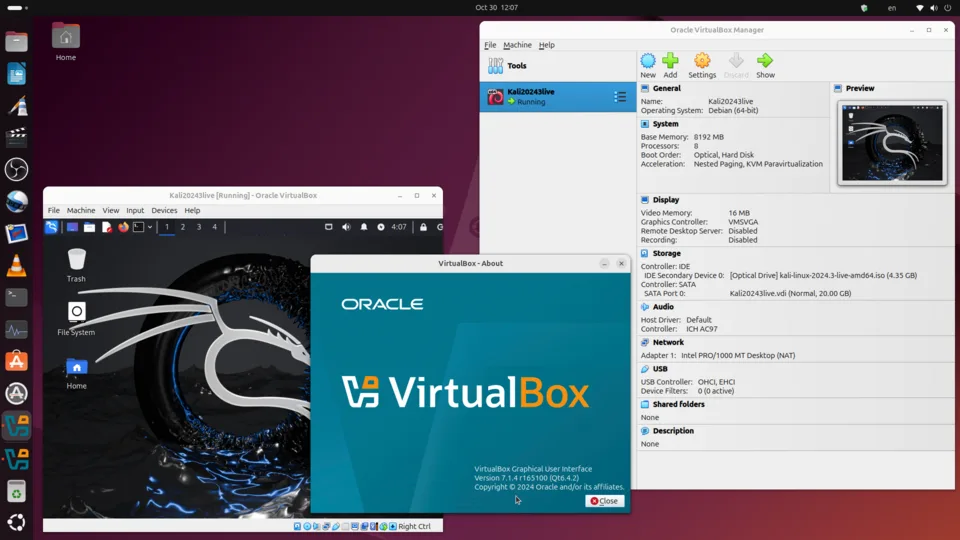
VirtualBox is a powerful, open-source hypervisor (specifically a Type 2 hypervisor) that allows you to run multiple operating systems (virtual machines) simultaneously on a single physical computer.
It is developed by Oracle Corporation and is widely used by developers, IT professionals, students, and home users for testing, development, and security.
Key Features of VirtualBox
- Cross-Platform: You can install it on Windows, macOS, Linux, and Solaris.
- Versatile Guest Support: You can run almost any x86 or x64 operating system inside it (various Linux distributions, Windows versions, BSD, Solaris, and even experimental OSes like Haiku).
- VirtualBox Guest Additions: A set of drivers and applications that enhance performance. They enable features like mouse pointer integration, shared folders between host and guest, better video support, and seamless windows.
- Snapshots: You can save the state of a virtual machine (VM) at any point. If something goes wrong (e.g., a virus infection or a broken software update), you can instantly “roll back” to the previous state.
- Shared Folders: Easy file sharing between the host machine and the virtual machine.
- Portability: You can export a VM as an “Appliance” (.ova file) and import it onto a different computer running VirtualBox.
- Free and Open Source: The base version is licensed under the GNU General Public License (GPL) v3.
Common Use Cases
- Software Testing: Test software on different versions of Windows or Linux without changing your actual computer.
- Safe Browsing/Security: Run suspicious files or browse websites in a “sandboxed” environment so that if your VM gets infected, your main computer remains safe.
- Cross-Platform Development: Develop code on a Linux environment while using a Windows-only tool.
- Learning: Experiment with installing new operating systems (like learning the Linux command line) without the risk of wiping your hard drive.
Pros and Cons
Pros:
- Free: Zero cost for the standard version.
- User-Friendly: The GUI is intuitive for beginners.
- Community Support: Huge amount of documentation and forums available.
- Hardware Virtualization: Takes advantage of VT-x or AMD-V technology for better performance.
Cons:
- Performance: Because it is a Type 2 hypervisor (it runs on top of an existing OS), it is generally slower than “bare metal” (Type 1) hypervisors like Xen, Proxmox, or VMware ESXi.
- 3D Graphics: Not ideal for gaming or heavy 3D rendering; its graphics acceleration capabilities are limited compared to a real PC.
- Setup Overhead: Requires you to manage disk space, RAM, and CPU cores for every VM you create.
How to Get Started
- Download: Go to virtualbox.org and download the platform package for your host OS.
- Install: Run the installer.
- Download an ISO: You will need an “ISO file” (the installer disk image) of the operating system you want to install (e.g., Ubuntu ISO, Windows 10 ISO).
- Create VM: Open VirtualBox, click “New,” follow the wizard to allocate RAM and virtual disk space, and then “Start” the VM to begin the OS installation process.