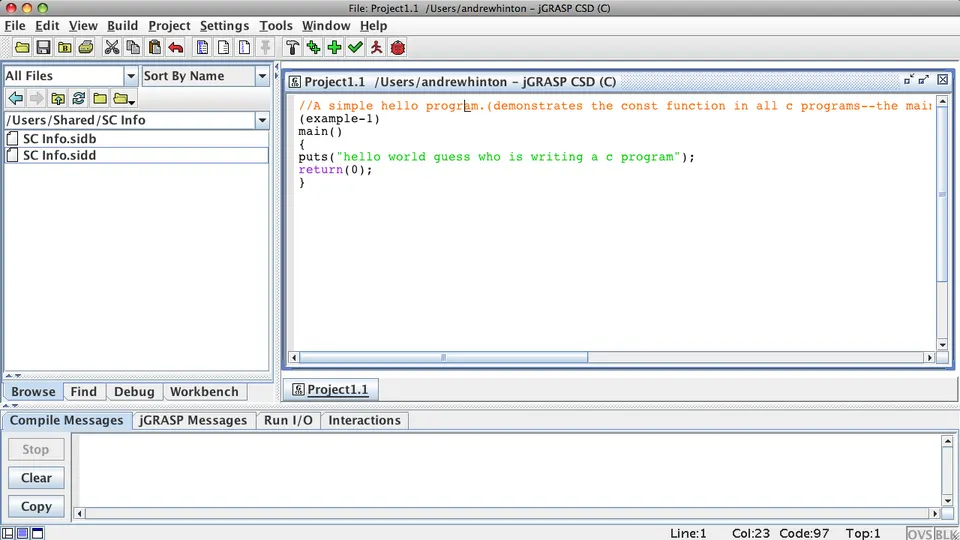
Integrated Development Environments (IDEs) are powerful software suites that provide comprehensive facilities to computer programmers for software development. They combine a source code editor, build automation tools, and a debugger into a single, cohesive environment. Think of them as a one-stop shop for everything you need to write, test, and debug code.
Here’s a breakdown covering everything from what they are, why they’re useful, key features, popular options, and how they compare to simpler text editors:
1. What is an IDE?
- Integration: The core concept is integration. Instead of using separate tools for editing, compiling, running, and debugging, an IDE brings them all together.
- Purpose: To increase programmer productivity by providing a streamlined workflow.
- Complexity: IDEs are generally more complex than simple text editors, but this complexity comes with significant benefits.
2. Why Use an IDE? (Benefits)
- Increased Productivity: Features like auto-completion, syntax highlighting, and refactoring tools significantly speed up coding.
- Error Detection: IDEs often provide real-time error checking, highlighting potential problems as you type.
- Debugging: Powerful debugging tools allow you to step through code, inspect variables, and identify the root cause of bugs.
- Code Navigation: Easily navigate through large codebases with features like “go to definition,” “find usages,” and code outlining.
- Build Automation: Automate the process of compiling, linking, and packaging your code.
- Version Control Integration: Seamlessly integrate with version control systems like Git.
- Refactoring: Safely restructure your code without changing its behavior. This is crucial for maintaining code quality.
- Testing Tools: Many IDEs include integrated testing frameworks.
- Language Support: IDEs are often tailored to specific programming languages, providing specialized features for those languages.
3. Key Features of an IDE
- Source Code Editor:
- Syntax Highlighting: Colors code based on its syntax, making it easier to read and understand.
- Auto-Completion (IntelliSense): Suggests code as you type, reducing errors and saving time.
- Code Formatting: Automatically formats code to adhere to a consistent style.
- Code Folding: Allows you to collapse sections of code to focus on specific areas.
- Compiler/Interpreter: Translates source code into executable code. (Some IDEs rely on external compilers/interpreters).
- Debugger:
- Breakpoints: Pause execution at specific lines of code.
- Step-Through Execution: Execute code line by line.
- Variable Inspection: View the values of variables during execution.
- Call Stack: Trace the sequence of function calls.
- Build Automation Tools:
- Makefiles/Project Files: Define the build process.
- Automated Builds: Automatically compile and link code when changes are made.
- Version Control Integration:
- Git, SVN, Mercurial: Connect to version control repositories.
- Commit, Push, Pull: Perform version control operations directly from the IDE.
- GUI Designer (for some IDEs): Visually design graphical user interfaces.
- Refactoring Tools: Rename variables, extract methods, and perform other code transformations safely.
- Testing Framework Integration: Run unit tests and integration tests.
4. Popular IDEs (Categorized by Language/Platform)
- Java:
- IntelliJ IDEA: Considered by many to be the best Java IDE. Powerful, feature-rich, and available in both a commercial and a free (Community) edition.
- Eclipse: A popular open-source IDE with a large ecosystem of plugins.
- NetBeans: Another open-source IDE, known for its ease of use.
- Python:
- PyCharm: A dedicated Python IDE with excellent features for web development, data science, and more. (Commercial and Community editions)
- Visual Studio Code (with Python extension): Increasingly popular for Python development due to its flexibility and extensive extension ecosystem.
- Spyder: Specifically designed for scientific computing and data science.
- C/C++:
- Visual Studio: A powerful IDE for Windows development, with excellent support for C/C++. (Commercial, but has a free Community edition)
- CLion: A cross-platform C/C++ IDE from JetBrains (the makers of IntelliJ IDEA and PyCharm). (Commercial)
- Eclipse CDT: The C/C++ Development Tooling plugin for Eclipse.
- JavaScript/Web Development:
- Visual Studio Code: Extremely popular for web development, with excellent support for JavaScript, TypeScript, HTML, and CSS.
- WebStorm: A dedicated JavaScript IDE from JetBrains. (Commercial)
- Sublime Text: While technically a text editor, it’s often used for web development with plugins.
- C#/.NET:
- Visual Studio: The primary IDE for .NET development.
- Visual Studio Code (with C# extension): A lightweight alternative for C# development.
- Rider: A cross-platform .NET IDE from JetBrains. (Commercial)
- PHP:
- PhpStorm: A dedicated PHP IDE from JetBrains. (Commercial)
- Visual Studio Code (with PHP extension): A popular choice for PHP development.
5. IDE vs. Text Editor
| Feature | IDE | Text Editor |
|---|---|---|
| Complexity | High | Low |
| Features | Extensive (debugging, build tools) | Basic (syntax highlighting) |
| Language Support | Often specialized | Generally language-agnostic |
| Productivity | Higher | Lower (requires more manual setup) |
| Resource Usage | Higher | Lower |
| Cost | Often commercial, some free options | Often free or low-cost |
- When to use an IDE:
- Large projects
- Complex codebases
- Need for debugging and build automation
- Working in a specific language with specialized tools
- When to use a Text Editor:
- Small projects
- Simple scripts
- Quick edits
- Learning a new language (sometimes a simpler environment is better)
- When resource usage is a concern
6. Trends in IDEs
- AI-Powered Coding Assistants: Tools like GitHub Copilot and Tabnine are integrating into IDEs to provide code suggestions and auto-completion based on AI.
- Cloud-Based IDEs: IDEs that run in the cloud, allowing you to code from anywhere with an internet connection (e.g., GitHub Codespaces, Replit).
- Low-Code/No-Code Integration: Some IDEs are starting to incorporate features for low-code/no-code development.
- Improved Collaboration Features: Real-time code sharing and collaboration tools are becoming more common.
Resources to Learn More
- JetBrains: https://www.jetbrains.com/
- Eclipse Foundation: https://www.eclipse.org/
- Eclipse IDE: https://eclipseide.org/
- Visual Studio Code: https://code.visualstudio.com/
- GitHub Codespaces: https://github.com/features/codespaces
In conclusion, IDEs are essential tools for modern software development. Choosing the right IDE depends on your programming language, project size, and personal preferences. Experiment with a few different options to find the one that best suits your needs.